The Employer Portal information session – 8 May 2026
Vicki Writer
Thank you so much for joining the webinar today. My name is Vicki Writer. I'm the Senior Manager for Business Services here at AustralianSuper.
It is my great pleasure to welcome you to this webinar today. I'll be the host for the session as we talk you through all of the key features for our new Employer Portal and what you need to know and what you need to do for a smooth and successful transition.
Now, if you have any questions at all throughout today's session, you can use our Q&A section by clicking the Q&A button at the top of your screen, and one of our team is on hand to answer those questions for you. I'll also be facilitating some Q&A towards the end of this webinar.
AustralianSuper acknowledges the traditional custodians of country throughout Australia and their connexions to land, sea and community. We pay our respects to elders past and present and extend that respect to all Aboriginal and Torres Strait Islander peoples.
I am joining you from the land of the Turrbal people on the northern side of the Brisbane River here in beautiful sunny, but a little bit chilly, Queensland.
Now I will be joined by another three speakers from AustralianSuper. Luke Fraser, Head of Workplace Partnerships, Mike Collins, Product Manager, B2B Channels, and Brent Caldow, Manager, Business Payments and Support.
Brent leads a newly created and dedicated team set up to help support you when you are using the new Employer Portal. Now before we get started, I do want to draw your attention to some important information. The information that you hear today is general in nature and does not take into consideration your personal objectives, circumstances or needs. The Clearing House is a financial product offered by ClickSuper Proprietary Limited, trading as Wrkrpay.
With that being said, I'm now going to hand over to our first speaker, Luke Fraser, to get proceedings underway. Thank you, Luke.
Luke Fraser
Hello everyone and thanks for joining us this afternoon for AustralianSuper’s new Employer Portal information session. As Vicki mentioned, my name is Luke Fraser. I'm the Head of Workplace Partnerships at AustralianSuper and my team works closely with employers, bookkeepers and payroll providers.
And our goal is to make your day-to-day super processes as straightforward as possible. Supporting us in the background today are our Business Services, Marketing and Employer Portal project teams. And today, Mike Collins, Product Owner of B2B Channels, will take you through a live demonstration of the Employer Portal and its key features including what you can expect when you first log in, the processes to make your first contribution, important steps you need to be aware of when activating the portal, and where to find help and support within the portal.
After the demonstration, Brent Caldow, Manager of Business Payments and Support,
will run you through the transition milestones. We'll also share a readiness checklist, as well as other resources at your disposal. We will have a recording covering the portal functionality on the Employer Portal Hub.
Now, just like consumers, we know digital adoption by businesses is accelerating. We're seeing businesses increasingly investing in digital systems to streamline their operations, automate routine tasks, and enhance productivity. Now, in line with these increasing expectations, we're committed to delivering a world-class local service for our business partners, like all of you on the call. This includes providing a dedicated service team, educational resources, and investing in digital administration tools like the Employer Portal to support compliance management. Our aim is to make it easier for you to meet your super obligations so you can just simply focus on running your business. Now, the importance of improving digital systems is further underpinned by the recent Payday Super reforms.
Commencing on 1 July 2026, Payday Super will be one of the most significant shifts in how super is administered in years. Payday Super is really designed to tackle unpaid super and improve member retirement outcomes. These reforms will see super payments align with pay runs, with contributions generally expected to reach an employee super fund within seven business days of payday.
There are, however, limited extensions for new starters, irregular payments, and choice of fund changes for existing employees. At AustralianSuper, we're expecting to see a 350% increase in payment volumes, and super funds will have much tighter deadlines to either allocate or return contributions received from businesses.
Now, while that sounds like a lot of change, the good news is we're here to help. And a key part of making that easier is the new Employer Portal. It's built to help make super payments easier by firstly, supporting the easier capture of data and cutting the rework. It enables real-time validation with clearer error messages, which reduces the likelihood of rejections and speeds up reconciliation.
It helps with the handling of stapling and choice of fund. The platform allows you to request an employee stapled fund details from the ATO, capture an employee's choice and keep a digital audit trail.
It also helps with validating employees details with super funds up front. In line with the changes to SuperStream standards from 1 July 2026, the platform will be able to confirm member and fund details before you submit, so contributions land the first time.
There are some dependencies on the broader rollout of Payday Super, however, it will be an important feature that helps minimise rejections.
It'll also help with supporting the new Payday Super file and error messaging framework, so issues are easier to spot, and you can fix them nice and quickly. So, that's a bit of a prequel.
Over the next 20 minutes or so, Mike Collins will walk you through the new Employer Portal, how it brings all of these things together and what good really looks like in a Payday Super environment. So I can see you there, Mike, over to you.
Mike Collins
Thank you very much, Luke. And thank you very much to everyone who has joined us today. And I really hope we can give you a very good, thorough overview of the Employer Portal and that you will join us soon. Join the thousands of employers who have set up the Employer Portal and are using it today.
So what I will walk through, we will do a live demonstration. I do have a test environment with a test employer that I can show you how things work so you get a real sense of the features around contributions, administration, the management of employees. And you get a sense of the look and feel of the portal as well, and some of those really important features that support Payday Super that Luke was speaking about.
We'll also run through a series of screenshots, essentially, of what to expect for when you set up. And I will try and give you some tips and tricks as we go through that so that it's a nice, smooth and straightforward experience that you can do in a matter of minutes. So without further ado, I'll start sharing my screen and we'll go through and show you exactly what the Employer Portal looks like. There we go. We're on screen now.
So this main screen here is what we call our dashboard. So when you log into the Employer Portal, this is what you'll see. It has the most recent contributions in the centre up the top and also most recent employee activity. On the right hand side, we do have some information.
So if you've got an upcoming contribution, there'll be a nice little reminder there with a handy click through to start a contribution. There is also some links out to our website for more information about our resources and if you need to complete a no super payment required form. On the left hand side here, you can see some menu items and through those we can navigate through to a much more detailed view. So let's click on the contributions, they start there.
Contributions is at the core of what the Employer Portal is all about. The ability to make contributions is going to be very important, particularly with payday super and the ability of the need to do this potentially on a lot more frequent basis.
As you can see, I've got a lot more information here than was on the main screen and I can toggle to other pages. None of the data that you'll be seeing here, folks, is real data. This is all a test environment, so don't worry about that. Up in the right-hand corner, we'll see this nice big purple button, new contribution, and you'll see this is a common theme on many of the pages to be able to start something new. There's a nice big purple button up there. So if I click that, there are two different options available for making a contribution, and I'll show you them both here.
We'll start with file upload, and we can put in the contribution or derive it from the file. Now I can upload a file. Now I can use a SAFF file, or I can use a QuickSuper version two file specifications. If I have something that's a little bit more exotic, I can use the map file settings so I can set it up so that it recognises my file each time. So it's a pretty handy feature if you've got something that's not SAFF or QuickSuper file formats. Let's upload a file here and this will go straight through to the screen.
Now, I'm going to show you a couple of versions of this, but we'll start with a nice clean contribution. Select next, and it will then upload and extract all the data from this file and place it into a grid format, which we'll see momentarily.
Here we go. So populate all of the employee details from that file. And as we can see, we've got the different contribution types, different employees and all of the information there. That all looks great. I haven't got any warning messages. And I can go through to the next screen. So this is a bit of a summary here.
And all I need to do is submit contribution. Now, one of the settings in the Employer Portal is that you can have one, two, or three authorisers or not have any authorisers at all. We don't have any authorisers in this demonstration version, but if it's at this point, if I did have an authoriser or more than one, I would be submitting for authorisation rather than submitting the contribution. I'll continue on, submit that contribution.
Then it will ask me to make the payment. So, in this particular case, we've configured this version of the Employer Portal to have EFT as the payment method, and I simply now need to make a payment to this BSB and account number. This BSB and account number is unique to me as an employer, and so when you set up the Employer Portal, you'll be issued your own BSB and account number when you pay via EFT or BPAY.
All I need to do is pay to that. And if I do this, say, on payday being a Monday, then those funds will receive overnight and then the next day they will be sent to the funds for contributions. That's really important to keep in mind when using EFT or BPAY. If you make those payments prior to the 5pm cutoff, those transactions will go through and to the funds the following business day.
Going back to the contributions menu here, we can see the status of that one is awaiting payment. When I do make that payment, it will change to reconciled and later on that day it will change to sent to fund.
I'll show you what it looks like now when we deliberately make an error in the contribution file, because errors are important and important to understand how they will look. So same file, but with a couple of deliberate errors included. Same process, we'll wait for it to upload those rows and those employee details.
And as we can see in this, there's two different messages. We've got errors and warnings. Warnings are things that perhaps aren't quite right but won't block a contribution going through. So the FYIs and recommended that you take action and correct that. Today's FYIs might become tomorrow's rejections as funds have less time to process contribution records.
So very good idea to pay close attention to these warnings. Errors, on the other hand, won't allow you to proceed. You will need to correct those or exclude those rows before you can proceed with the contribution. And the reason for that is there's not enough information or it doesn't conform to the expected standards to enable that contribution to proceed. So rather than finding yourself down the track a few days later, getting a message back from a fund saying, sorry, we couldn't allocate this, we tell you up front.
There are two different types of errors here, one that I can edit and one that I can't. And let's look at this example here, the USI is incorrect for this one. So I'll go and edit that.
As we can see on the right hand side, the fund details are incorrect, and I can edit the fund here. So I will click the pin, and I can type in the name of the fund, and it will do a USI look up for me.
All right, AustralianSuper there. I click the cheque mark.
And that has been updated, so I can close that panel.
We can see now that this icon has gone from a red error to a grey icon, so we keep it for log purposes that that has been updated. You can't update any of the other details that are fine, because there's no reason to.
But there are other types of errors that can't be edited, such as this one here for John Lennon, where the date of birth has not been provided. So in this case, the options available to me are to go back to the source system that generated the file, that's perhaps the payroll system, and make sure that that date of birth is included there.
A date of birth is a key point of data for funds to be able to allocate contributions to the right person. So without that, they can't do so. So I can do that and I can re-upload the file once I've done it if I want to, or I can simply exclude that particular row and come back to that later and enable the other six to go through.
So I'll do that here. As we can see, there's six employees now rather than seven as before, and the amount is a little bit different.
If I submit that, we'll get the same message. Say I need to make the payment for this amount to the same BSB and account number. So nothing different on this particular page. Now, let's assume now that I need to get that payment for John Lennon sorted out because I've fixed that. I'll show you how we'll do that manually if I wanted to do that.
So I'm going to put in the contribution period date and I'm going to do it from a blank grid. So in this case, I'm going to add a row and I'm going to type in John.
and it'll find John Lennon from my employees directory, and I can pop in the amount here. So let's say 150. So at this point, same summary screen, but the amounts there and I submit the contribution. So very similar process. Obviously, you don't want to do it for a large number of employees. The contribution file is going to be a most efficient way of doing that, but manual contributions are supported via the grid. And you can use previous ones if that's the way, or previous templates if you like, for processing those. And we know a number of our employers do use that function. So that's a little bit about contributions.
I'll touch on now the employees management. So there are three different ways that you can add employees into the Employer Portal, and four if you count the data migration aspects and the data transfer that I'll talk to a little bit later.
The simplest way is actually via a contribution file and having all of the member details populate. If they're new, they will populate into the system, but there is also the ability to add employees manually and through an online onboarding module.
Clicking on the manual input first, I would enter in all of the personal details, including all of the information you can see here their address details, their TFN, and this is very important for funds to be able to match and allocate. And optionally, I can include their bank account details as well. Now, if I don't know their choice of fund or what their fund requirements are, I can do a staple lookup.
And that means I go through to the ATO to cheque what those employees details are. And you have to have registered on the system to enable that. If I do know what fund they want, they've perhaps told me or told me that I will use a default, I would click these options here.
So, if they've given me their APRA fund and their member number, I can type that in. Same with the self-managed super fund and default, so you can select AustralianSuper as default here, so as simple as that to create an employee. Now, if the employee is default and with AustralianSuper you can, or it will generate a member number for you straight away. So you can have that added into your payroll systems. I'm going to leave without saving here because I didn't put any details in it in any case.
We're going to go through to the online onboarding function here. And this is something brand new for AustralianSuper and something we're quite excited about.
So, this flow here starts with me adding in a few personal details for the employees, so name and personal e-mail address, and their role within the organisation, and so forth. I can then ask for them to provide the TFN, bank account details and super choice, and I can toggle that off if I don't want to collect those details.
Now, the way the process works, you start with those initial details for the person, and then you send an invite. It sends an invite out to them, so they are directly providing those pieces of information that you've requested. So, they're entering the TFN, bank account, and they're making their super selection for you, including doing a stable lookup if you've enabled that. So it's a very, very handy way of onboarding new staff members and getting the details that you need and doing so securely. So you don't really want to be handling information, sensitive information like TFNs using emails.
So this is a very good way of capturing that, putting it into your systems. It is possible through the administration menu as well to brand this experience and set up your logo. So that can be a very good welcoming experience for that new starter and new employee as they provide this critical information to get paid.
When they're providing their super information to you directly, they're much more likely to get it right. And they can do the lookup and make sure that they get it as per their exacting requirements. And so that avoids any sort of challenges down the track with those details being incorrect.
It's not just about onboarding. There is the ability to manage employees as well. So let me show you how we might need to offboard someone. If I click on the ellipses on the right hand side, we can see cease employment details. Or if I needed to, I can edit their details such as changing of funds, for instance.
Let's say that Adam left here yesterday through retirement.
When I do that and cease employment, that'll update the status of the record from being active to cease. And so that closes the loop and they are essentially off board from the organisation. One thing I'll quickly touch on here is the statement. So this is where the virtual bank encounters. Now this system works a little bit differently to some other systems and certainly it will be a feature that's prominent and useful for payday super considerations.
So when you make a contribution, a funder contribution using the BSB and account number that I was showing before, the money comes into the virtual bank account and then is sent out to the various funds for contributions. In the event of any rejections, those funds come back into the virtual bank account, enabling you to correct the issues and resubmit those transactions. And with a seven day window to make sure that those payments have arrived at the place that they need to be.
That's really important because you're taking an extra bank transaction out of the process, and bank transactions can take some time. So a really important feature here, and you are issued with your own BPAYaccount number when you set up the Employer Portal.
A couple of other things I'll touch on in the portal, first of all, is how I might add another organisation. Forgive me here. This is a test environment, so it does like to play some games. Certainly not how the main system or the production system behaves. Let me just log back in quickly.
I can assure you that the AustralianSuper e-mail addresses are very long. Now, if we look here, I can add another organisation. So I can view all of the organisations. We had a bit of a view on that on the previous page.
But if I add another, there are a couple of the ways that I can do that. So I can add that and go through the process. Or I can go through and we'll view all organisations. I can start there as well, but I can also do something called a hierarchy. So I can add a new affiliate. So the Employer Portal supports complex organisation hierarchy. So if I've got multiple organisations, parent-child relationships, different subsidiaries, or even branches, I can open up new affiliates. So that connects to the parent organisation. A branch is where the same ABN is applied, and a subsidiary is where there's a different ABN. Now, a hierarchy structure such as this will inherit some of the parent organisation values. So the refund bank account and some of the settings will be applied by using an affiliate structure. If I don't want an affiliate structure, I don't want those things to be the same, I can set up a new organisation. And then we essentially have these tiles here that we can navigate through to, kind of like a Netflix profile when you've got different profile settings that you can go through.
And this is really handy if you happen to be an accountant or a bookkeeper or a part of a payroll team that is managing a large complex organisation where you want to go into these different profiles. And it is possible to set up your users that are unique to each of those profiles. So we do see some organisations setting up a different structure, perhaps, for the executives, so that only certain people are able to see the contribution details in there.
For instance, going back to the main menu there in the dashboard, up in the top right-hand corner is this Help icon, the question mark.
And that takes you through to a page where we've got, or a help resource essentially, where there are multiple how-to guides and FAQs and so forth. If I want to set up MFA or get any instructions on how to do something.
Here's a very good resource to come to, and typing it in. So, what these instructions typically look like is they have a few different pieces of information up front, but then there's usually an interactive demo, so each step, it's a step-by-step guide essentially of how to do a certain task.
Put that on pause, so there is a voice in my ear that I'm hearing from, but a step-by-step guide as well. So, pretty much everything that you can do in the portal is shown here, and it's a really great resource if you run into any troubles or uncertainty.
Coming to this section, you can go into how might I do this? How do I add a branch? How do I add a subsidiary? The things I was just talking to before. So within the portal, lots of helpful information available. And this link is available publicly, so you don't have to have set up the portal and getting access to some of these help guides.
and I'm sure the team will be able to post that into the chat for anyone that might be interested.
Now, I want to quickly touch on how to set up the portal. And one of the common questions that we get in webinars such as this is, when can I do it? When can I set up my portal? I'll answer that a few different ways.
We do tend to send out invites, we will send out an invite to all of our existing users of the business portal and QuickSuper and invite you to start your migration process over to that platform, and the e-mail that's on screen is a proxy for what you would expect there.
One of the common questions is, do I need to wait? When can I get my email? And no, you don't need to wait. You can go onto our public website now and start through the registration link to start this process. But I do want to share as we go through some of the things that you'll want to keep in mind as you do that, so you can avoid any pitfalls or challenges along the way. So let's use this e-mail as an example of what you'll receive when you are invited. You'll see that there is an ABN and an employer number here. Now this employer number is not your QuickSuper ID. It is an employer number that is your AustralianSuper employer number. So very important that you have this piece of information ahead or when you go to register.
We include it in this invitation email, but if you want to get started sooner than the invitation email, have that piece of information handy. And I'm sure the team will paste a how to find the employer number link into the chat if you don't already know what that is.
The steps involved in setting up the Employer Portal, there's three main steps. So the first part is setting up your user account. Secondly, there are setting up the organisation, and the third part is the Quickstart checklist. So we'll walk through all of those here now.
I'll click this, start the registration process. It'll be the same if I click or go through our website with this button.
First step is setting up the user account. Now really important that this structure, use your actual name as it will appear on your driver's licence or a passport. So we have seen some people put in the manager. That's going to run into issues if you were to do that. So very important to use your legal name.
At this juncture, and the reasons will become apparent as we go through name and e-mail, and then continue on, and we will send a six-digit code to that e-mail address just to validate it, so you'll enter that six-digit code in, and the next step is setting up a password. So, I won't labour the point here, I'm sure everyone knows what setting up a password looks like, repeat and confirm and make sure that all of the minimum requirements are met.
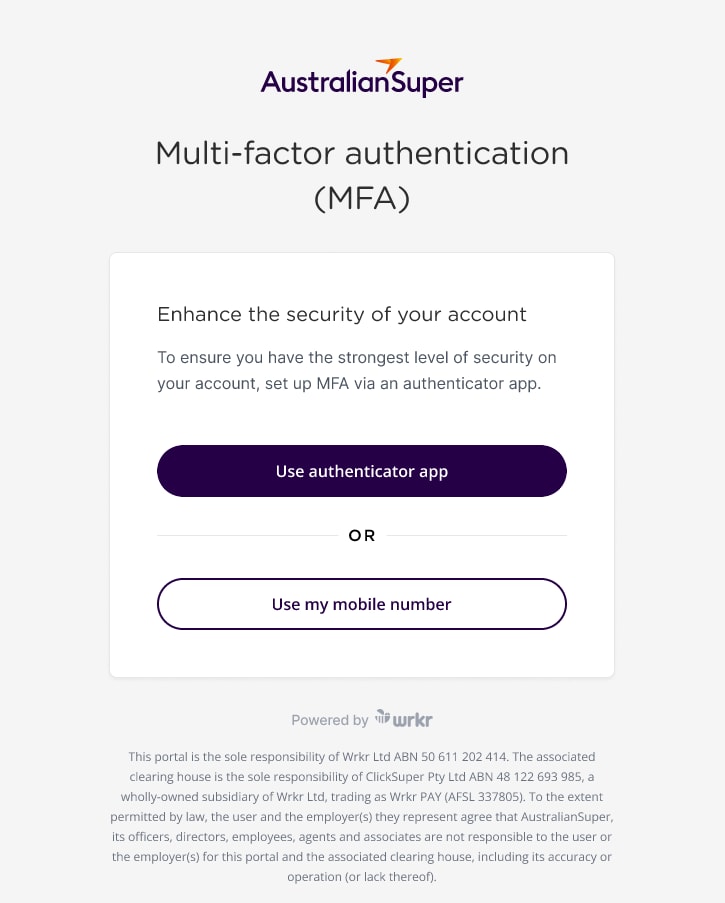
And the next step is setting up MFA. So there's two different options, using an authenticator app, such as the Google Authenticator, or using a mobile number. Mobile number, straightforward, enter in your Australian mobile, seeing the code.
To that, and then also enter a six-digit, provide you a six-digit code via SMS. You'll simply enter that in and that will confirm your login. You'll do that each time you log in with your password. So, at this point, my user account is set up, so we'll continue on.
Now, to set up the organisation, we'll acknowledge that I am the right person to do so, and then we'll need to enter in that ABN. So, pretty straightforward, you'll know what your ABN is, I'm sure. Enter that in and continue on.
And then this is really important. If you're an existing employer with AustralianSuper and you have previously used the Business Portal or QuickSuper, you'll definitely need to get this step right. But even if you haven't used those systems and have an employer number, please click on the use Existing Account tile here.
And this is where you need to enter in that employer number that I was mentioning before. This is very important to get right, and once again, it's not the QuickSuper identifier, it is your employer number that you'll need to enter here. When you do that, as an existing employer, we'll pre-populate some details based on what we have on file.
Please check these and make sure they're correct. And sometimes they do go out of date. So we'll correct those if they need to be edited. As in new employer, if you were doing that, these will be blank. You'll just simply fill them in.
A few extra details, again, we've pre-populated where we can, but some of this information, such as number of employees in particular, might have gone out of date. So please make sure that this is accurate and then fill in the rest of the information here and then we can continue on to the next step. At this point, declarations are important. So there's some terms and conditions to read through and to acknowledge.
You can download these. And if you wanted to have someone review them, you can download them, save and exit, and come back and complete this form later. They are also available within the portal and are for download at a later juncture. So if you ever need to look at those, you can do so. Simply ticking the boxes, though will enable you to proceed and click next and you'll just go through a review section here. So just a sanity check to make sure all of the information is correct. If it's not and you need to correct it, you click the edit button, and it'll take you back to the relevant section.
So pretty straightforward. At this point when I submit, the account setup is done. So I've completed that process and then I can go through to the Employer Portal.
So here, you'll see a dashboard very similar to the one I was showing before, but at this point, there's a few extra items in the middle with this Quickstart checklist. So the first step, and they are migrating or all those that are moving away from the business portal and QuickSuper, this is the screen that you'll see. So you'll see invite users. So we've taken the opportunity to populate essentially all of those users that you've used in either or both the QuickSuper or Business Portal, but we don't automatically activate them, so we know that some employees may have left an organisation or may no longer be in the same role, and so we ask you to go through a step of validating.
So if they're no longer there, you can remove the user. However, Jim in this case is definitely part of the payroll team, so I can make sure that I send an invite through to Jim so that he can set up his user account and log into the portal as well. Contribution to user, different permissions that I can assign and make sure that that's appropriate for Jim.
And I'll send an invite. So he will then get an invitation to start that process. He won't need to do the organisation setup, but he'll go through and do the password and the MFA setup as we've previously walked through.
Going back to the Quickstart checklist, the next step for an existing QuickSuper user is to add employees. So we've got this feature here available to auto-populate employee details, and this will bring all of your existing employee details over from QuickSuper. So there's a few steps involved in this, and I'll explain how that works. Because this is sensitive data, we do have an identity cheque that's in part of the process and is necessary to complete. And this is why it's so important to have your legal name, because we're checking against your driver's licence or passport to make sure you are who you say you are.
and that you are entitled to capture that sensitive employee detail. So we take that very seriously in protecting employee data.
So continuing on, it's as simple as, because we'll need to do this on our mobile phone, taking a photo of the QR code and going through to the URL. There's a few steps and information sections here, accept and continue. So the process is simply taking a photo of your driver's licence or a passport.
If it's a driver's license, you'll need to take a photo off the back of it as well and then doing a selfie video. So we're just comparing to make sure the person in that document and also that those details match off with the name that you've used in the setup. From here all the employee data will start downloading. And it can be very quick if you've got relatively few employees, but if you've got quite a number, it can take a little bit longer. And so we will regardless send you an e-mail notifying you once that download has been completed. You don't have to wait, you can continue through to the Quickstart checklist, and carry on with the next steps while that download is occurring. So the next part is setting up the contribution payment method.
At the moment, we have EFT, BPAY, and direct debit. Very soon, in the next month or so, we expect to have OSKO as a payment type available, and certainly prior to the Payday Super regulations coming in. EFT, straightforward, BPAY, I'm sure you're familiar with as well. Direct debit has a few extra steps involved where we verify the bank account number that you've entered and make sure that you have access to it. So one thing I would recommend is avoiding direct debit, we make it available for convenience. However, with direct debit and due to the payment system, there is a three day clearance period for the funds for contribution. So that's three days eating into your seven day window for making contributions in a Payday Super context. So it can be a little bit slower. It's easy and convenient. We understand that. But it is something that we would recommend steering away from, particularly in that payday super context. EFT and BPAY, like I said, if you make that transaction, say at 1pm on a Monday, the following business day being the Tuesday, those funds will be received and provided with the full amount, they will be sent out for the contribution to the funds later on that Tuesday. So that will keep you within your seven day window.
Going back to the previous menu, there's a refund account that needs to be set up as well. And this is a very important step because you cannot make a contribution without having first set up a refund account. The process involves adding in a bank account number and verifying identity. So if I've already done the identity verification very recently, I don't need to do it again. So if I've done it for the employee download, I won't have to repeat that step.
The next part is entering in some bank details, so BSB and account number. And at the moment, we send a 1 cent transaction through to that bank account with a payment reference number associated. So the last step will be to enter in that payment reference number in step 3 to square the circle and prove and verify that you have got access to it.
Now, due to the payment system, depending on which bank you're with, that might take one to three days. So this is definitely an activity you want to plan ahead of and get done before you need to make a contribution. There is a particular format for the payment reference number. It is a longer code.
And so pay close attention to what that payment reference number is when it comes through on your bank statement. I won't go through the steps of doing it all here though, because it might take a little bit of time.
The next steps are setting up authorisation settings. So we touched on it verbally with the contributions. I can toggle on authorisation. It's by default switched off. And this is where I can edit to enable one, two or three authorisers to have to improve a payment. So some of our larger organisations might want to have that to be aligned with their Treasury policies and rules.
Going back, few steps here. The next part is setting up stapling service, so this is highly recommended. It enables you to do a stapling lookup with the ATO, and the process involves connecting with the ATO Access Manager and entering a code, so that you're essentially pairing like Bluetooth version of the Employer Portal with your ATO account so that you can do a lookup. And at this point, you're ready to make a contribution.
And the next time you use the portal, you'll be able to upload a file or make a manual contribution like I was demonstrating earlier.
I think I've talked for a little bit too long. I would like to pass on now to my colleague, Brent Caldow, so he can speak through some of the next steps forward to joining you a little bit later on for some Q&A.
Brent Caldow
Awesome. Thanks for that, Mike. It was a fantastic demo and good day everyone. My name is Brent Caldow and I'm the manager of the new business payments and support team here at AustralianSuper. My team will work closely with employers and internal partners to ensure your contribution processes run smoothly, especially as we transition to the new Employer Portal and clearing house.
To wrap up today's session, I'll walk you through what's next, how the transition will unfold, what you can do to get ready, and the support you can expect from us.
This slide gives you a high level indication of the different stages of the transition and when they'll occur.
Late last year, we commenced the build and testing of the new Employer Portal, followed by a pilot with selected employers. After incorporating feedback from the pilot, we're now beginning the broader transition from QuickSuper to the new Employer Portal which leads us to today.
We'll be sending out invites in phases as mentioned earlier, so you can receive this as your trigger to register. However, if you are ready now, you can go to our website and register using your company details and your AustralianSuper employer number. And I believe details have been popped in the chat.
Now, let's walk through some steps to help you prepare for the transition. As a first step, log into QuickSuper to make sure your company details, users, and employee details are up to date. Our Employer Portal transition hub has an FAQ and step-by-step instructions on how to do this.
We recommend nominating a lead and a backup for the transition. These will be your setup owners and our main contacts.
Then, ensure you have handy details like your ABN or WPN and your AustralianSuper employee number to avoid any surprises during the registration process.
From there, it's all about the registration set up. Keep an eye on your inbox if you're waiting for that e-mail as the trigger to begin the Employer Portal registration process.
Create your admin login in the Employer Portal once you receive the invitation and enable multi-factor authentication or MFA add your users, and assign roles so the right people can prepare, approve, and reconcile contributions. You'll also need to complete the contributions Quickstart checklist, which is shown on the dashboard of the Employer Portal when you log in.
Choose your payment method, set up your refund account, and when ready, create your first contribution batch file.
Agree on the reconciliation process, who exports reports, who matches them to payroll and bank records, and make sure your internal teams know where to log in and who to contact with any questions. Treat this checklist as your run sheet to ensure your first contribution in the new Employer Portal is smooth and on time.
And finally, support and resources. You're not doing this alone.
We've created a dedicated Employer Portal webpage with transition information, FAQs, and links to helpful resources. The portal itself also has in-app help to guide you through each step as you complete your super administration tasks.
In addition, we'll send you a series of emails to guide you through each stage of the transition.
We're rolling this out in stages to give everyone time to prepare and ensure every employer is onboarded successfully. So the message I'd like to leave you with is this. There's a clear plan and strong support around you as we move to a new Employer Portal and clearing house. I'd now like to hand back to our host, Vicki, to kick off our Q&A. Thanks, Vicki.
Vicki Writer
Thank you, Brent. Great overview. And what I would like to do is invite our other two speakers, Mike and Luke, back on screen if I could. I would like to facilitate some Q&A. I have been looking through the Q&A. Some great questions have come through, some common questions and some common themes and what I thought I would do is ask you each a couple of questions, which I think you're well equipped to answer and see if we can get some answers that are going to benefit everybody that is on this call. Now I can see someone has just popped their hand up. I was going to say if you have a question, you could put that into the chat. But Brent, I would like to start with you if I could. Common question, can we onboard new employees via the contribution file like we do now with QuickSuper?
Brent Caldow
Great question, Vicki. And short answer is yes, you can onboard your employees through the contribution file, similar to what you would have in QuickSuper. So if you have all the employee details in your contribution file, a new AustralianSuper membership can be created when you submit that file and the information is sent across to the fund.
To create the member record and send the member number back within the Employer Portal itself. Now, there are two other methods as well, if you prefer to use different methods, as Mike showed earlier, where you can manually create an employee record. So, go in, pop in the employee details, and send them across. Similar thing, a member number will be sent back for you within the Employer Portal for AustralianSuper. Or you can trigger off the digital onboarding request to your employee, get them to fill in the details. If they select AustralianSuper, a members number will also be created for them through that process, which you can pick up within the portal.
Vicki Writer
Excellent. One more for you, Brent, if I could. The contribution file that we currently upload to QuickSuper has certain format fields. Will that format field need to change for the new Employer Portal?
Brent Caldow
Another great question. So the Employer Portal is designed to work with the main contribution files that you may be using in QuickSuper at the moment natively. So that is a QuickSuper file format and also a SAFF file format. Now, the SAFF file format is the preferred file format to use as it does contain additional data fields and may help you, may help prevent some additional work you need to do in the portal when setting up a self-managed super fund for an employee. So yes, if you're using one of those files at the moment, you can certainly use those files as you transition across to the Employer Portal.
Vicki Writer
Thanks, Brent. What about triggering a new stapling request through the new Employer Portal?
Brent Caldow
Yeah, look, that's something as well that's a fantastic tool to be able to use in the portal, especially coming up to Payday Super. So within the Employer Portal, there is the ability to trigger a stapling request. So what you need to do to be able to do that successfully is a couple of steps prior. So within your user settings, you're able to go in and connect to the ATO Access Manager.
Now, to do that, you need to log into that platform, and you need to search for Wrkr as your SBR software provider. Now, there is you can use their name or their ABN, and there's a unique software ID that you need to add in. Once you go in there and set those details up within the ATO Access Manager and you confirm that you've set that up within the Employer Portal, you then have the ability to trigger a statement request across through to the ATO. Now, traditionally, you might have had to wait for a single touch payroll event to be able to get that information, but the Employer Portal uses the tax file number declaration as a trigger to establish the employment relationship.
And once the employee has done that step, and if they denote that they want to have a stapled fund returned, that uses the trigger to bring the staple fund back from the ATO into the Employer Portal where you'll get the USI details and the membership number to be able to start submitting contributions to their fund of choice.
Vicki Writer
Thank you. One more for you, Brent, and then I'm going to jump across to Mike. Will all employees be moved across simultaneously from QuickSuper or will we have to set them up one by one?
Brent Caldow
Yeah, so another great question. So if you're an existing user of the AustralianSuper instance of QuickSuper, there is the option for you to migrate data across. So Mike touched on that in his demo earlier, whereas one of the steps in the contribution Quickstart checklist, where you can go in and you have the ability to auto populate employees.
Now, to be able to do that, you need to click on the button, follow the IDV process to ensure that the security protocols have been met, and then that will start to pull across those employee records into the Employer Portal for you. So it all happens in the background and you'll be receiving an alert once that has been completed.
If you didn't use QuickSuper though and you don't have any employee data to migrate across, you are still able to create employee records either manually, upon the submission of a contribution file, or to send digital onboarding requests out through to your employees to get that information in the portal so you can start to submit your contributions on their behalf.
Vicki Writer 48:32
Thank you, Brent. Mike, I might step across to you if I could. Question for you, Mike. I have two paydays, monthly and fortnightly. How do I select the payday schedule?
Mike Collins
Yeah, it's a great question. And I saw that being asked in the FAQs, well, the Q&A section just now. So you can, our recommendation would be to select the most frequent in terms of nominating your payment frequency. So if you pay fortnightly and monthly, set fortnightly as your payment frequency.
The reality is it won't obstruct your ability to pay for different payment cycles. You can always pay your contributions in line with your pay cycles. And obviously that's a requirement come payday super. So set the most frequent payment cycle frequency and then pay in line with payday would be the recommendation.
What the contribution frequency drives, you might remember the big orange box up in the top right hand corner, reminding you about an upcoming contribution. It will just simply flag that based on that payment frequency to remind you that there might be something that you need to do. Beyond that, it doesn't constrain any ability.
to make payments as frequently as need be.
Vicki Writer
Thank you, Mike. One more for you. Is there a way to terminate employees in bulk on the Employer Portal?
Mike Collins
At the moment, there isn't the ability to do a bulk termination. We can do the cease employment thing that I was walking through. It is possible, however, to add an end date into your contribution file and that will update that cease date as well.
If you're currently using QuickSuper and you haven't yet migrated your data, and you do suspect you've got a few older employees in there, you can go through and inactivate them in the QuickSuper system, and that will avoid them being migrated across, so there's less cleanup for you to do later.
We are working on a feature at some point over the coming months where we will look to have the ability to do bulk updating and termination. But we would also recommend that it's something that you get on top of and get into a regular basis of making sure your employee details are up to date. And I did see a question in the FAQ about can I update my employee’s details, you know, change their funds, and yes, you can. So get into that habit of keeping it up to date and in your payroll systems as well. It's always going to be the best thing to avoid any sort of surprises around contributions that might cause some problems down the track.
Vicki Writer
Exactly. Mike, what about provisions to integrate with payroll systems like Employment Hero? Is that functionality available?
Mike Collins
It's something we're definitely working on. So at the moment, I'll be honest, it's not there, but it is something we are working on with our technology partners. So we know integration with payroll systems and various employment systems is really important. And that's why we capture some of the information like bank account.
There's no reason for a clearinghouse to need bank account details. But if we do that in onboarding and we've got integrations in the future, we can get those systems talking. So we simplify the task for employers and capturing this information and avoiding handling into multiple environments. So definitely something that we're working on and something we're looking forward to introducing as we go in the coming months.
Vicki Writer
Thank you, Mike. Final one for you and then I'm going to jump ahead to Luke. Will the Clearing House Project stay free within the new Employer Portal?
Mike Collins
Absolutely, we've got no intentions of charging for the clearinghouse. We've never charged for a clearinghouse or any of our systems. Our aim is actually just to make it simple for employers to do what they need to do and making super contributions, setting up and managing employees doing those things that need to be done, keeping that as simple as possible, and yes, it will remain free.
Vicki Writer
Thank you, Mike. Luke, I'm going to finish my Q&A section with you. Payday Super on our doorstep implementation 1st of July. We're heading in middle of May next week. What can employers do to prepare?
Luke Fraser
Lucky last. Thanks, Vicki. And when do I start? 54 days and counting down. I know many people on the call will have seen some of the awareness activity, whether that's been from funds like us, payroll, software providers, but you know, we've seen a distinct shift from awareness to act now, and that is certainly something that the ATO is pushing hard across all channels. So I'd say, Vicki, you know, it's important for people on the call to be considering what their internal stakeholder engagement looks like, how they'll inform and communicate with employees,
Big thing, data quality. This is all about data, new super stream error messaging framework. Make sure your data is right and your systems. We're here talking about our platform and new Employer Portal, but obviously you have payroll systems, you have onboarding systems as well. I might elaborate on a few of them. I've got 5 minutes left, I think, Vicki.
So first up on the internal stakeholder engagement front, you know, depending on the size of your organisation, it could include finance, could include technology, could include HR. For finance, you know, what's the implications for cash flow? If you're going to move towards NPP like Mike talked about, you might want to speak to your bank and ensure that you're going to be able to send NPP payments. For technology, what are those system changes? What does testing and deployment look like? Are there any process changes for HR? What are the onboarding practises look like? Where do you mention superannuation payment cycles during onboarding?
How will you do things like looking for an employee stapled fund, an employee's default fund, their choice fund? And if you do that manually now, strongly consider moving to a more digital method. For your employees, and I saw some questions in the chat, this is the opportunity to let them know that the change is coming, what it means for them, but importantly, how you plan to deal with the intersection between FY26 this financial year, prepay day and FY27 when pay day lands. It's important because they could receive up to 15 months’ worth of contributions in one year.
And you know, the heart of that is July is going to be a tricky month. You've got the overlap of the two rules. You've got the final quarterly contribution due for FY26, which isn't due until July 28th of July. Plus, you already start payday and, you know, if you're paying employees weekly, you could be due for a contribution one weekend with a seven-day clock that's already started.
So the ATO has indicated that any super payments that are made in July will first be applied to any outstanding June quarter liability before being counted towards payday super obligations. So what it means is if June isn't cleared before your 1st July payroll, you may inadvertently fall behind in those new rules. So to avoid this, what you can consider is paying the June quarter in late June, or at least before that first pay run in July to ensure a clean transition and minimise that compliance risk.
I won't spend long on data quality, but you know, important to confirm that your employee personal information is up to date, confirm that the super fund details are up to date, so the name of the fund, the USI or unique super identifier, ensure that member numbers are up to date, particularly where there's been mergers.
On the system front, ensuring that your systems are ready to cope with the new payment cycles. You've heard from the team today about the new Employer Portal and how it supports Payday, including things like the member verification request functionality, stapling integration the virtual bank account, onboarding capability, NPP payments coming soon. People are asking when you can start with the Employer Portal. There's a link in the chat. You can start now. Obviously, there's emails coming out as well. But it's also important for you to be talking to your payroll providers and your digital service providers understand what's being rolled out, when and if it'll cost you anything. With all of that said, you're probably asking how we can help.
There is a fantastic Payday Super webpage that will continue to be updated. It includes a checklist that you can refer to, and we'll add a link to the chat in a second. There's also a Payday webinar recording you can watch on that site, but we have another session coming up on the 20th of May, a live webinar, so look out for your invite to that. If you'd like to connect with any of the team, what I'd say is if you want information for payday or the Employer Portal, you'll see another link added to the chat. So feel free to submit a query there and the team will be in touch as soon as they can. So pretty close to time there, Vicki, I might hand back to you to bring us home.
Vicki Writer
Thank you, Luke. Thank you, Mike. And thank you, Brent.
Ladies and gentlemen, that does conclude our Q&A for today and does bring to a close this webinar. We hope you've enjoyed it. We certainly hope you've enjoyed learning more about the new Employer Portal and how it will support you with your Payday Super obligations.
You will see on screen there is a QR code. We would love for you to be able to provide us with a little bit of feedback by answering a couple of quick questions. We look forward to making super administration faster, simpler and more secure.
Thank you for your partnership.
Good afternoon.